Audio to document
Turn an MP3 to Word-ready text
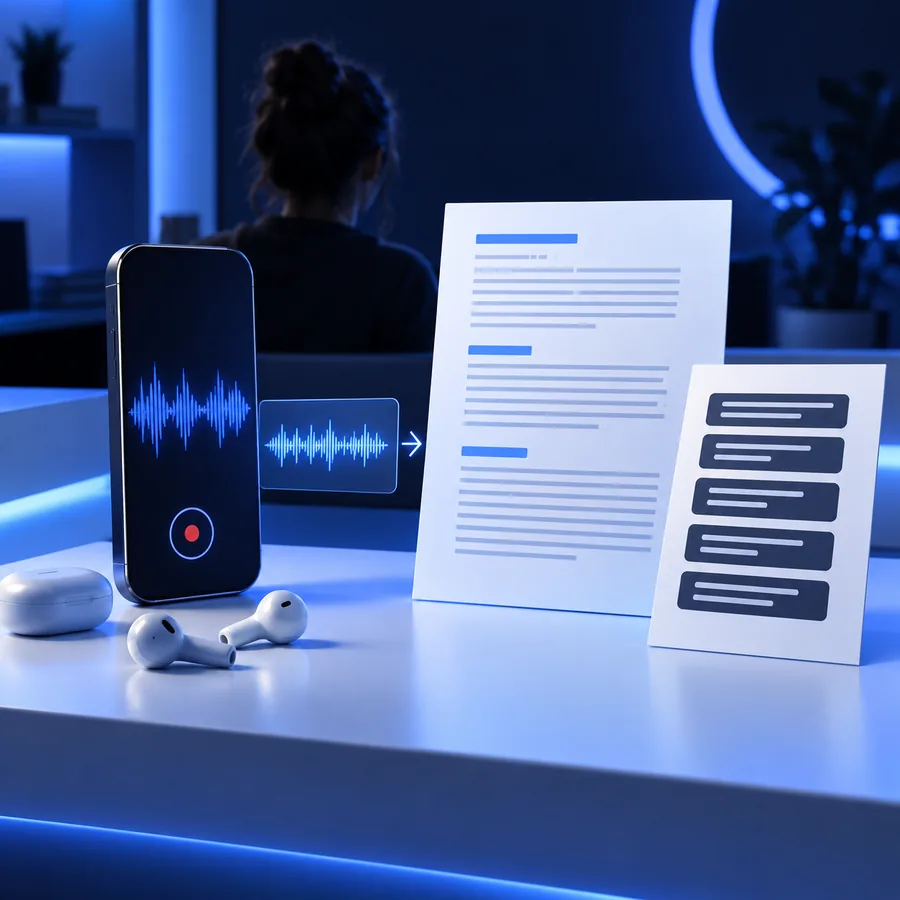
An MP3 to Word workflow turns spoken audio into text you can place in an editable document. Transcribe the recording first, then review names, punctuation, and formatting before using the text in Word.

Why move from MP3 audio to a Word document?
Audio preserves how something was said; a document makes the words easier to find, revise, and reuse. Transcription connects the two without replacing the original recording.
- MP3 recording
- Word-ready transcript
Primary content
MP3 recording
Recorded speech and other sounds
Word-ready transcript
Written words from the recording
Finding a passage
MP3 recording
Listen or seek through the recording
Word-ready transcript
Search for a word or phrase
Editing wording
MP3 recording
The spoken recording stays as captured
Word-ready transcript
Correct and reorganize the written copy
Quoting
MP3 recording
Replay the relevant segment
Word-ready transcript
Copy a passage after checking it against the audio
Formatting
MP3 recording
No document headings or paragraphs
Word-ready transcript
Add headings, paragraphs, and speaker labels
Verification
MP3 recording
Original source for checking what was said
Word-ready transcript
Draft that needs review for missed or uncertain words
The tool block: start with a transcript
These examples show useful ways to describe an input recording. The resulting text is a draft for a document, not a guarantee that every name or phrase was captured correctly.
-
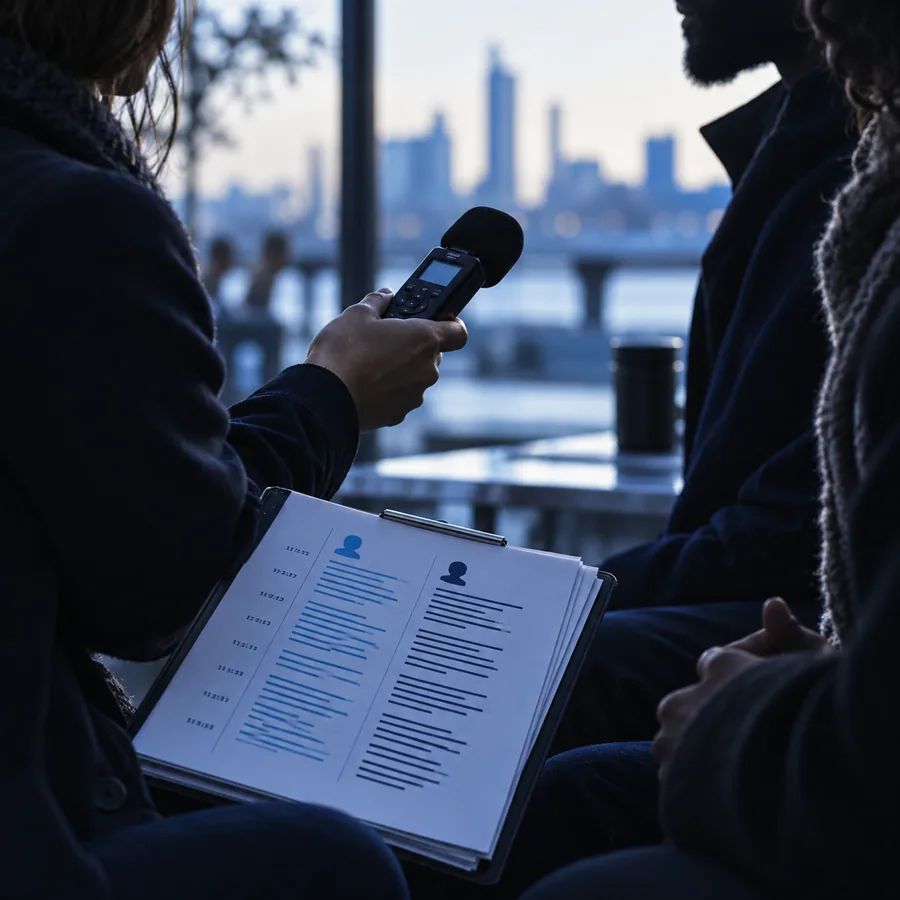
 Interview
1Interview draft: keep speaker changes visible so questions and answers remain easy to separate when pasted into Word. Input: An MP3 interview with two speakers; request a transcript with speaker labels.
Interview
1Interview draft: keep speaker changes visible so questions and answers remain easy to separate when pasted into Word. Input: An MP3 interview with two speakers; request a transcript with speaker labels. -
 Meeting
2Meeting draft: preserve what participants said before turning the transcript into a separately reviewed summary. Input: An MP3 meeting recording; request readable paragraphs without adding decisions that were not spoken.
Meeting
2Meeting draft: preserve what participants said before turning the transcript into a separately reviewed summary. Input: An MP3 meeting recording; request readable paragraphs without adding decisions that were not spoken. -
 Voice note
3Voice-note draft: break a long monologue into paragraphs that are easier to edit in a document. Input: An MP3 voice note; request paragraph breaks while retaining the speaker's meaning.
Voice note
3Voice-note draft: break a long monologue into paragraphs that are easier to edit in a document. Input: An MP3 voice note; request paragraph breaks while retaining the speaker's meaning.
From recording to editable copy
The format change has two parts: transcribing speech and preparing the text for a document. Keep the original MP3 available while you check the draft.
-
1
Provide the recording
Choose the MP3 you want transcribed. For a long recording, note any sections or speakers that need particular attention.
-
2
Generate written text
Ask for a transcript rather than a summary if you need the spoken wording. Speaker labels or paragraph breaks can make the draft easier to work with.
-
3
Check and format
Listen again to verify names, figures, technical terms, and unclear passages. Then place the corrected text in Word and add the document formatting you need.
Make your recording useful on the page
Start with the spoken words
A transcript gives you editable copy for notes, interviews, and other recorded material. Treat it as a working draft: compare important passages with the MP3 before quoting, distributing, or filing the document.
Transcribe my recording- Keep the original audio for verification
- Correct uncertain words before sharing
- Format the reviewed text in Word
MP3-to-Word questions
An MP3 contains audio, while a Word document contains editable text and formatting. The practical route is to transcribe the speech, review the text, and put the corrected transcript into a Word document.
A transcript aims to capture speech, but background noise, overlapping voices, accents, and unfamiliar names can cause errors. Check important passages against the original audio, especially before using a quotation.
Yes. Once the speech is written out, you can correct words, add paragraph breaks, and format the copy in Word. Keep factual corrections separate from changes that would alter what a speaker actually said.
Request a transcript when you need the speaker's wording for records, quotations, or close review. Request a summary when you need the main points instead. A summary should not be treated as a verbatim account.